

To help administrators keep track of various events, Security for Bitbucket (version 3.20.0 and later) places certain entries in Bitbucket’s Audit Log.
Accessing the Audit Log via UI
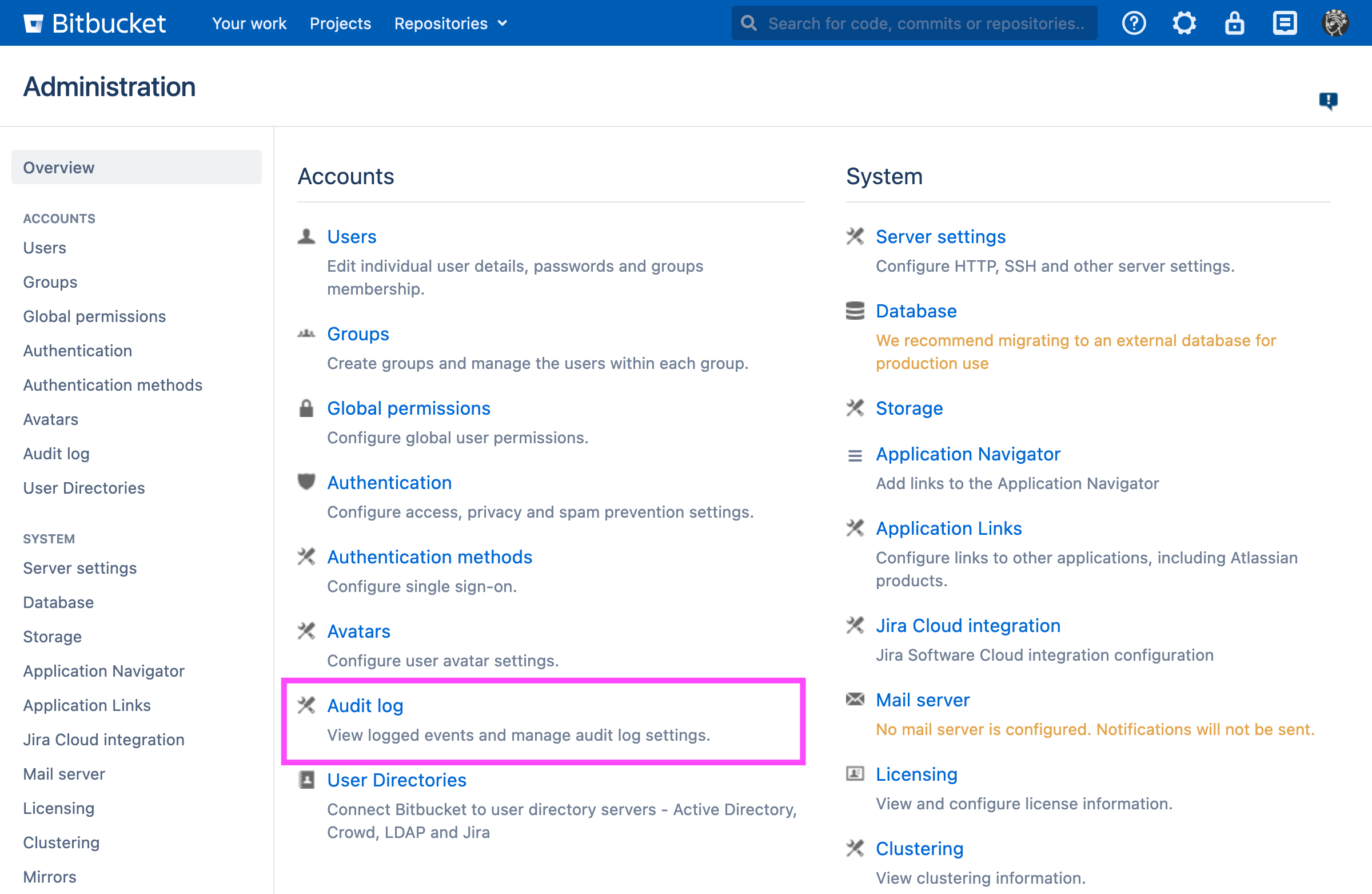
From the Administration panel, choose Audit Log:
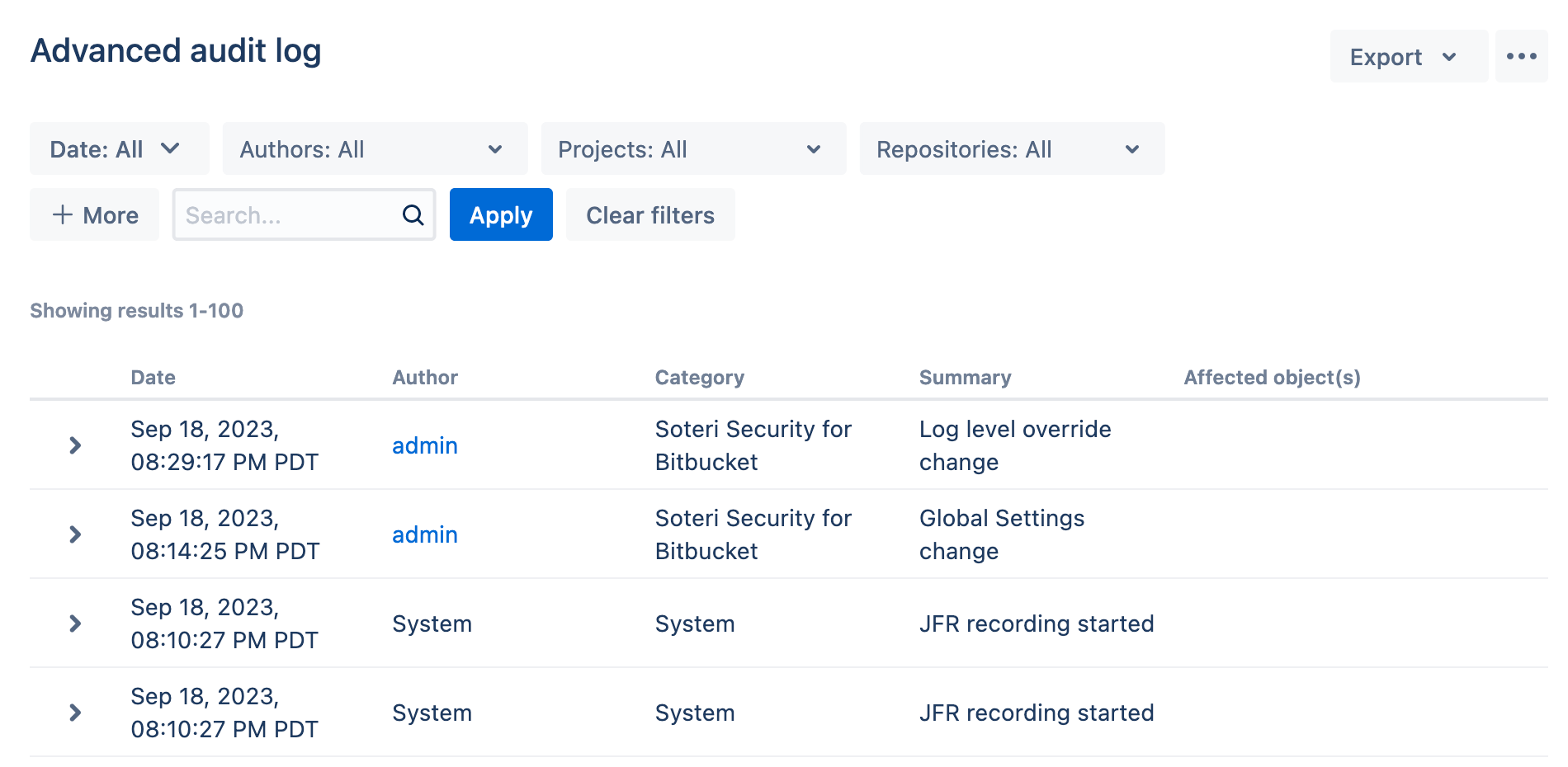
This brings up the “Advanced audit log” page:
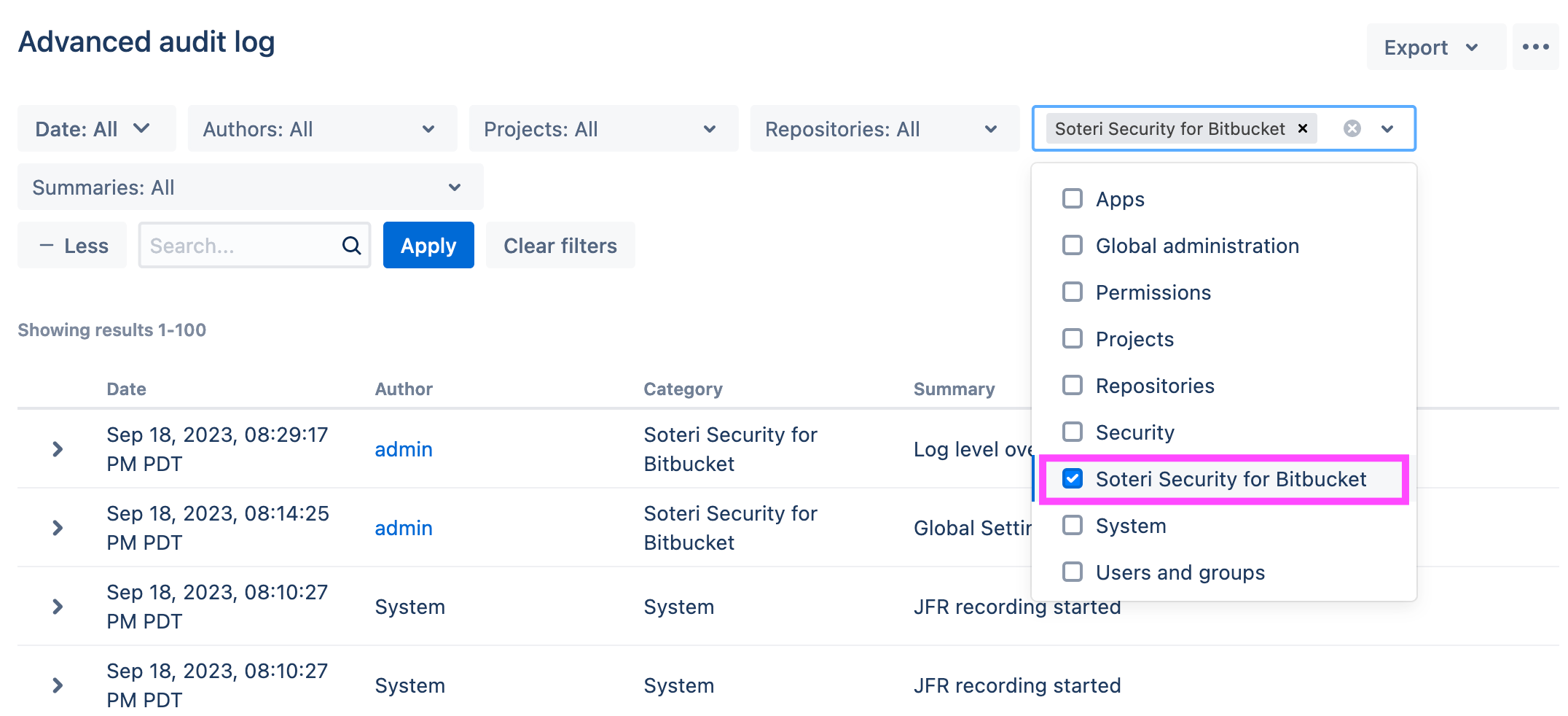
From here, click on the + More button. A new Categories drop-down will appear. From that, select “Soteri Security for Bitbucket”:
and then click on the Apply button. The events can then be seen:
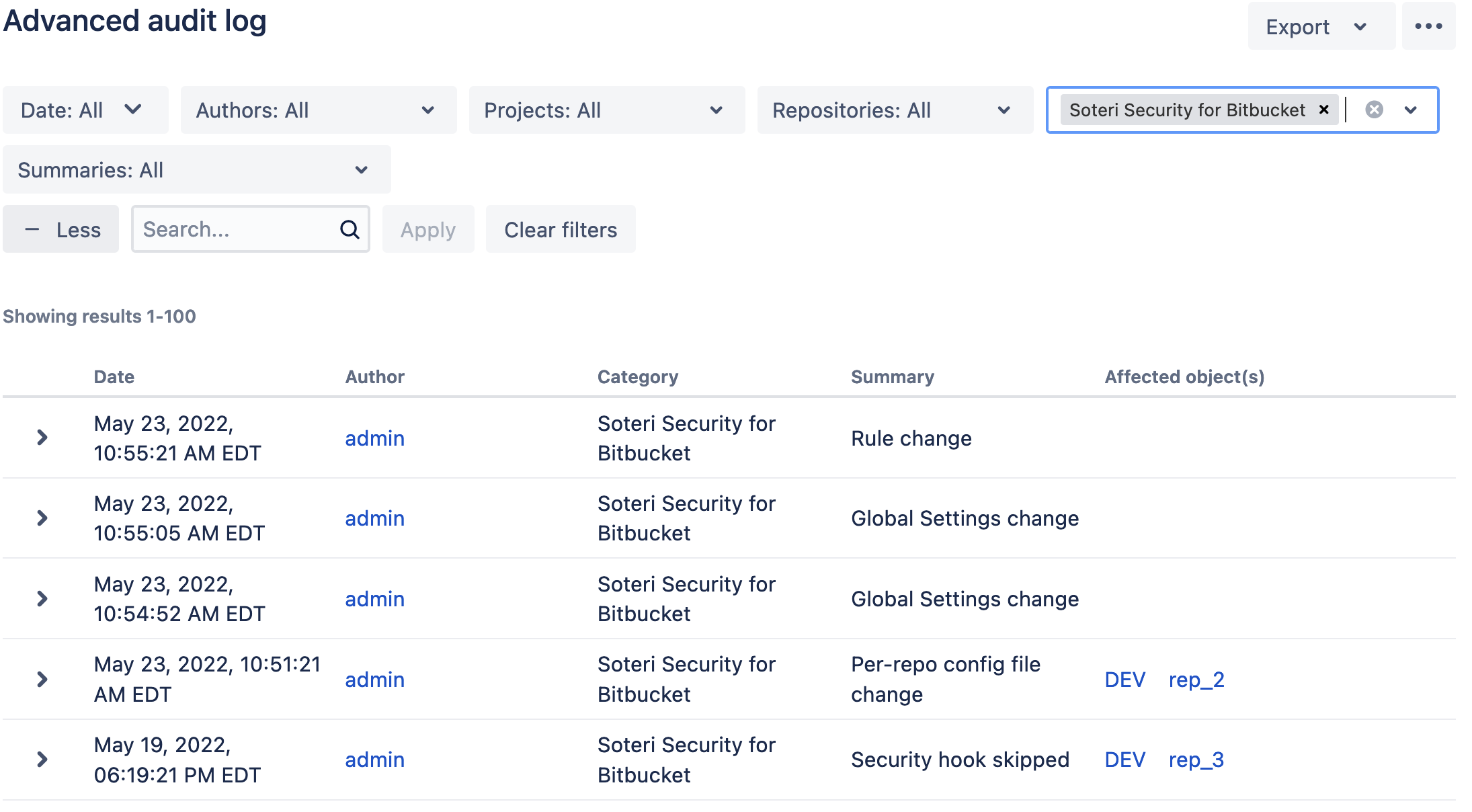
Clicking on a given event’s arrow will expand the event, revealing more details:
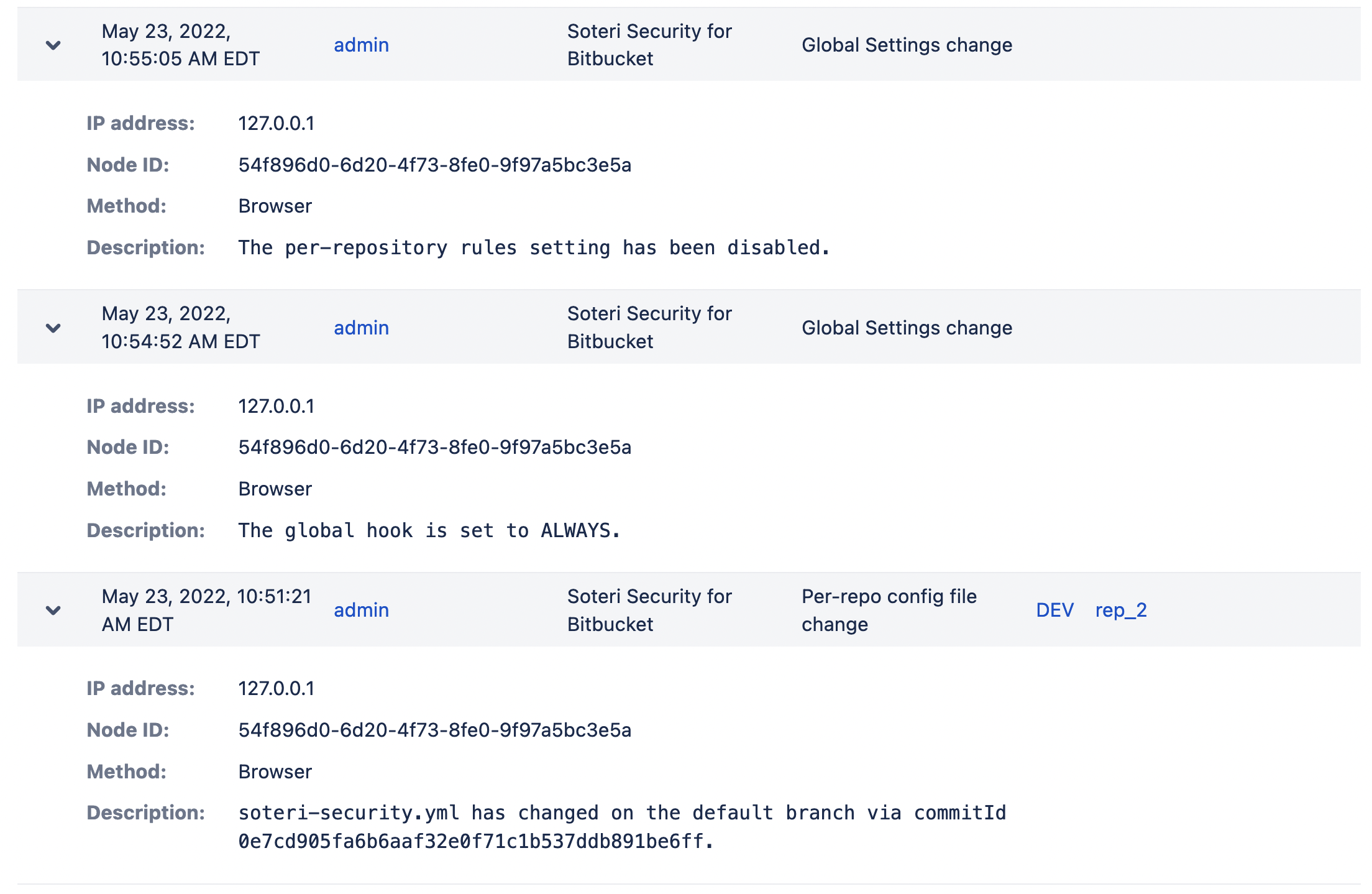
Audited Events
The following Security for Bitbucket events are currently recorded in the Audit Log:
-
Any global settings changes:
-
Changes in the Global Hook status or mode
-
Built-in rule toggles
-
Custom rule creation, deletion, changes, or toggles
-
Per-repository settings toggles
-
Individual or group access changes to the Global Settings
-
-
Whenever anyone manually scans a branch, repository, project, or whole instance.
-
Findings being marked or unmarked as reviewed in the repository scope
-
Globally reviewed false positives being added or deleted (See Hiding false positives, revoked credentials, etc.).
-
Changes to
soteri-security.ymlon the default branch of a repository -
Soteri Security Hook related events:
-
Skipping the hook by way of the specialized commit message
**skip-soteri-security-check** -
When the hook warns about one or more commits in a push
-
When the hook blocks one or more commits in a push
-
-
When files are skipped during hook and manual scans. The reasons for the files being skipped will be listed in the audit event.
Accessing the Audit Log via REST call
-
Bitbucket exposes REST APIs that you can use to export CSVs or JSON
-
Audit logs can be integrated with external tools to create automated alerts if need be.
Using the Bitbucket REST APIs to export CSVs or JSON
As an example, you may export CSV of just “Hook Skip” Events like so:
curl -u admin 'https://{bitbucket.server}/bitbucket/rest/auditing/1.0/events?actions=Security%20hook%20skipped&categories=Soteri%20Security%20for%20Bitbucket&limit=100&outputFormat=csv' -o hook-skip-events.csv
-
bitbucket.serveris the URL of your Bitbucket server,
CSVs can be filtered by both repository and project, by adding query parameters to the URL:
?affectedObject=PROJECT,{proj_id1};PROJECT,{proj_id2};REPOSITORY,{repo_id1};REPOSITORY,{repo_id2}&limit=10&outputFormat=csv
The ID of a project can be obtained from its project key using the Bitbucket REST API:
curl -u admin 'https://{bitbucket.server}/bitbucket/rest/api/latest/projects/{project_key}'
The ID of a repository can also be obtained from its project key and repository slug using a similar Bitbucket REST API:
curl -u admin 'https://{bitbucket.server}/bitbucket/rest/api/latest/projects/{project_key}/repos/{repository_slug}'
The export endpoint will return JSON if the outputFormat=csv argument is excluded. This might make it easier to use for automation compared to the CSV format.
Setting up an integration with an external service to consume the audit log
Audit log events can be integrated with external tools like Splunk, or Amazon CloudWatch Agent. Such tools can then be set up email alerts when certain events are triggered.
-
Bitbucket’s instructions for setting up log integrations: https://confluence.atlassian.com/bitbucketserver/audit-log-integrations-996643661.html
-
Instructions for setting up email notification actions for Splunk: https://docs.splunk.com/Documentation/Splunk/9.0.4/Alert/Emailnotification
Viewing audited events via a REST call
Events which affect a particular repository may be viewed via a REST call like this:
curl -u admin https://{bitbucket.server}/rest/audit/latest/projects/{projectKey}/repos/{repoSlug}/events
where
-
adminis your Bitbucket admin user (you’ll be prompted for a password), -
bitbucket.serveris the URL of your Bitbucket server, -
projectKeyis the project containing the repository, and -
repoSlugis the repository slug whose events we want to fetch.