
latest 5.0.x 4.1.x 4.0.x 3.3.x 3.2.x 3.1.x 3.0.x 2.14.x 2.13.x 2.12.x 2.11.x 2.10.x 2.9.x 2.8.x 2.7.0 2.6.0 2.5.0 2.4.0 2.3.x 2.2.x 2.1.x 2.0.x 1.12.x 1.11.x 1.10.x 1.9.x 1.8.x 1.6.x 1.5.x 1.4.x 1.3.x 1.2.x 1.1.x 1.0.x
Auto Light Dark
Auto Light Dark
latest 5.0.x 4.1.x 4.0.x 3.3.x 3.2.x 3.1.x 3.0.x 2.14.x 2.13.x 2.12.x 2.11.x 2.10.x 2.9.x 2.8.x 2.7.0 2.6.0 2.5.0 2.4.0 2.3.x 2.2.x 2.1.x 2.0.x 1.12.x 1.11.x 1.10.x 1.9.x 1.8.x 1.6.x 1.5.x 1.4.x 1.3.x 1.2.x 1.1.x 1.0.x

Automatically Scanning Content

By default, Security for Confluence will automatically scan new and updated content. This scanning functionality will only be engaged once a space has been scanned, so that spaces which you don’t wish to scan in the first place will remain unscanned.

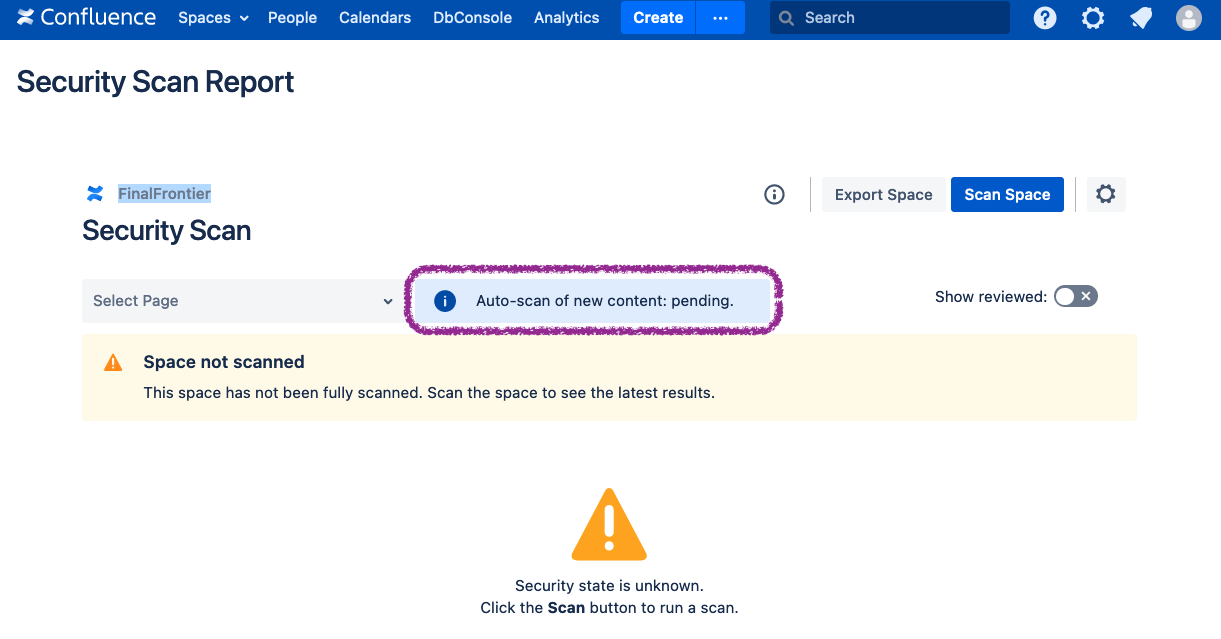
The automatic scanning status of a space can be seen in the Security Scan Report.
Screen Shot 2022-09-27 at 4.38.23 PM.png
This space has yet to be scanned. Once it is, automatic scanning of new/updated content will begin.


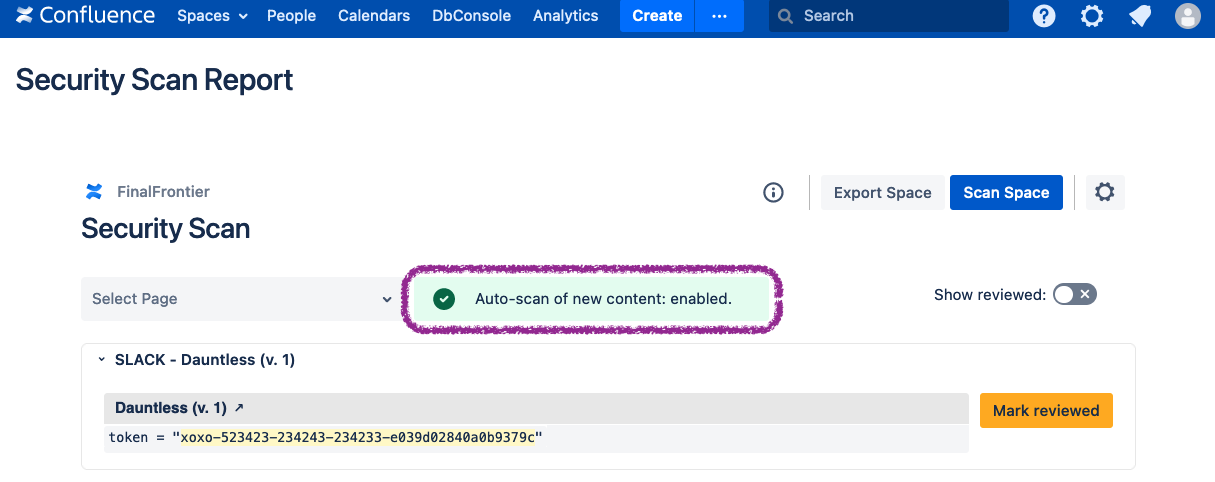
Screen Shot 2022-09-27 at 4.54.40 PM.png
This space has been scanned at least once, so now it will be automatically scanned when new/updated content is published in it.


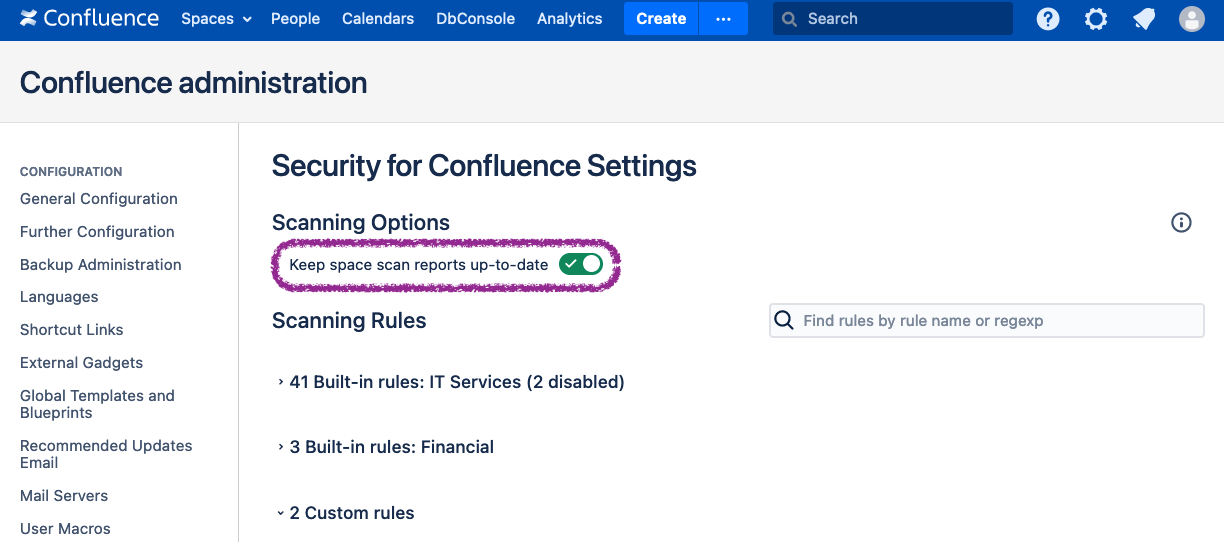
Auto-scanning can be disabled by a Confluence administrator. Simply visit the Settings Page and toggle the “Keep space scan reports up-to-date” switch.

Only Confluence administrators have access to these settings.
Screen Shot 2022-09-27 at 4.47.26 PM.png

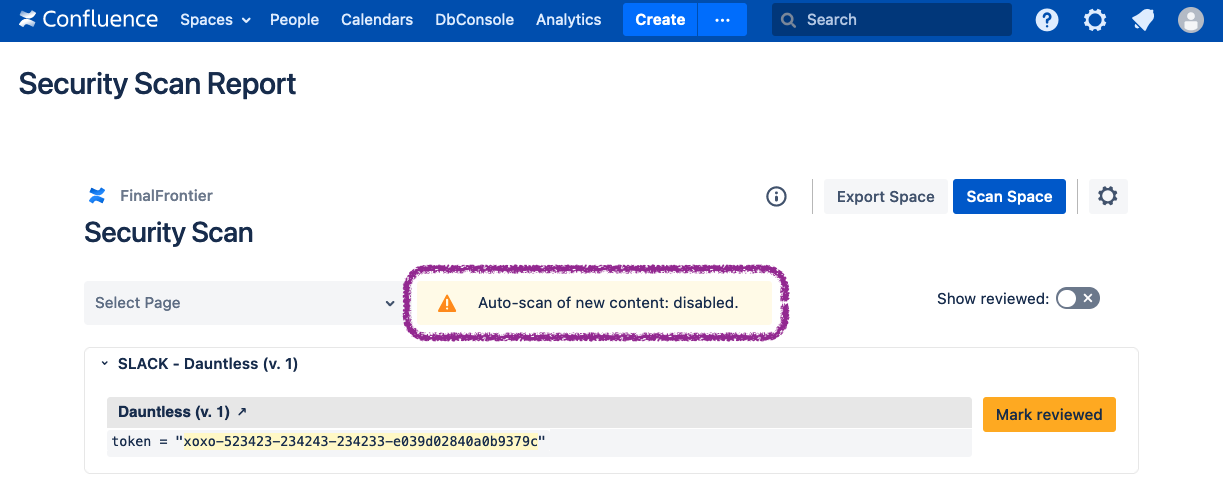
If auto-scanning is changed, reloading the Security Scan Report will reflect the change.
Screen Shot 2022-09-27 at 4.48.45 PM.png
Auto-scanning has been disabled, so no space will be automatically scanned.