

The Security Analysis for a given project allows administrators to view and handle scan findings for the project.
Only project administrators, Jira administrators, or any user granted explicit app access can access a project’s Security Analysis.
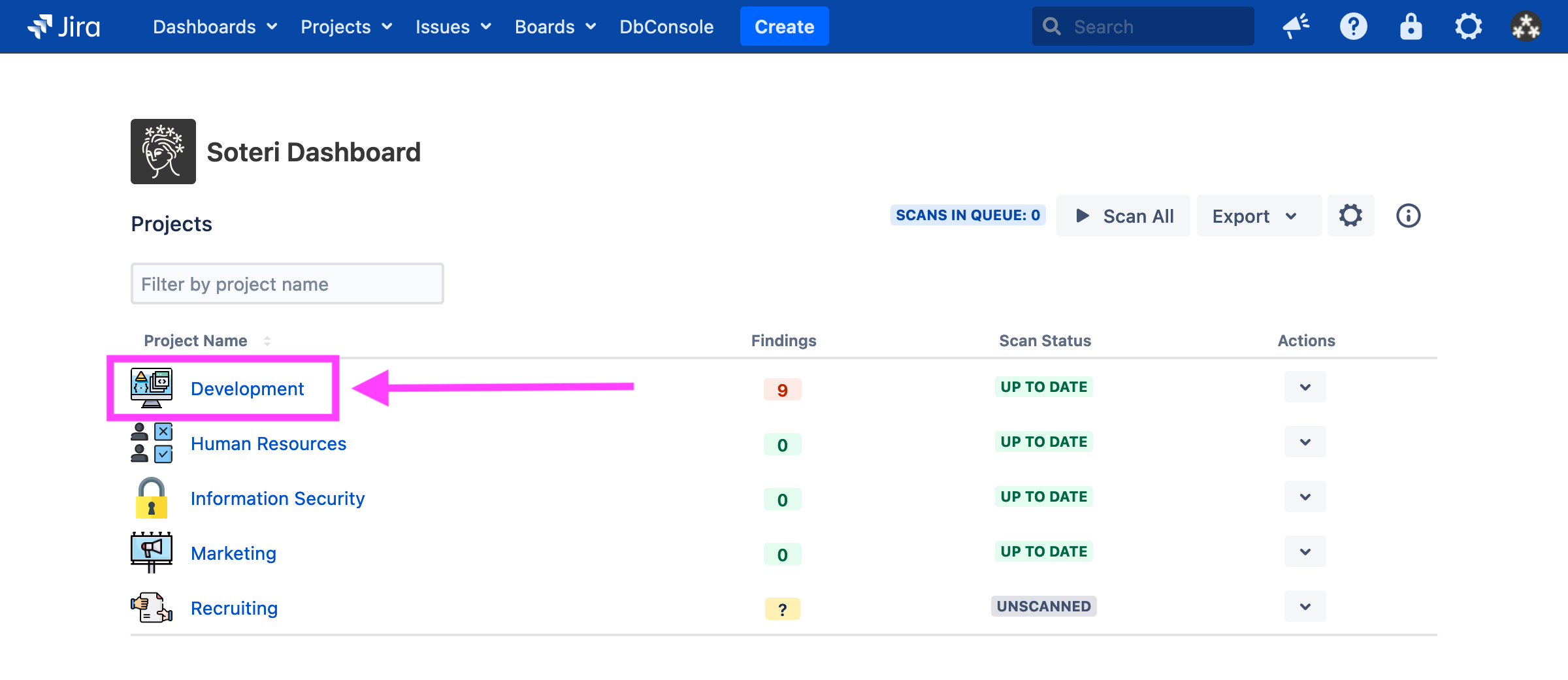
There are two ways to reach a project’s Security Analysis. First, you can reach it from the Soteri Dashboard, by clicking the name of the project:
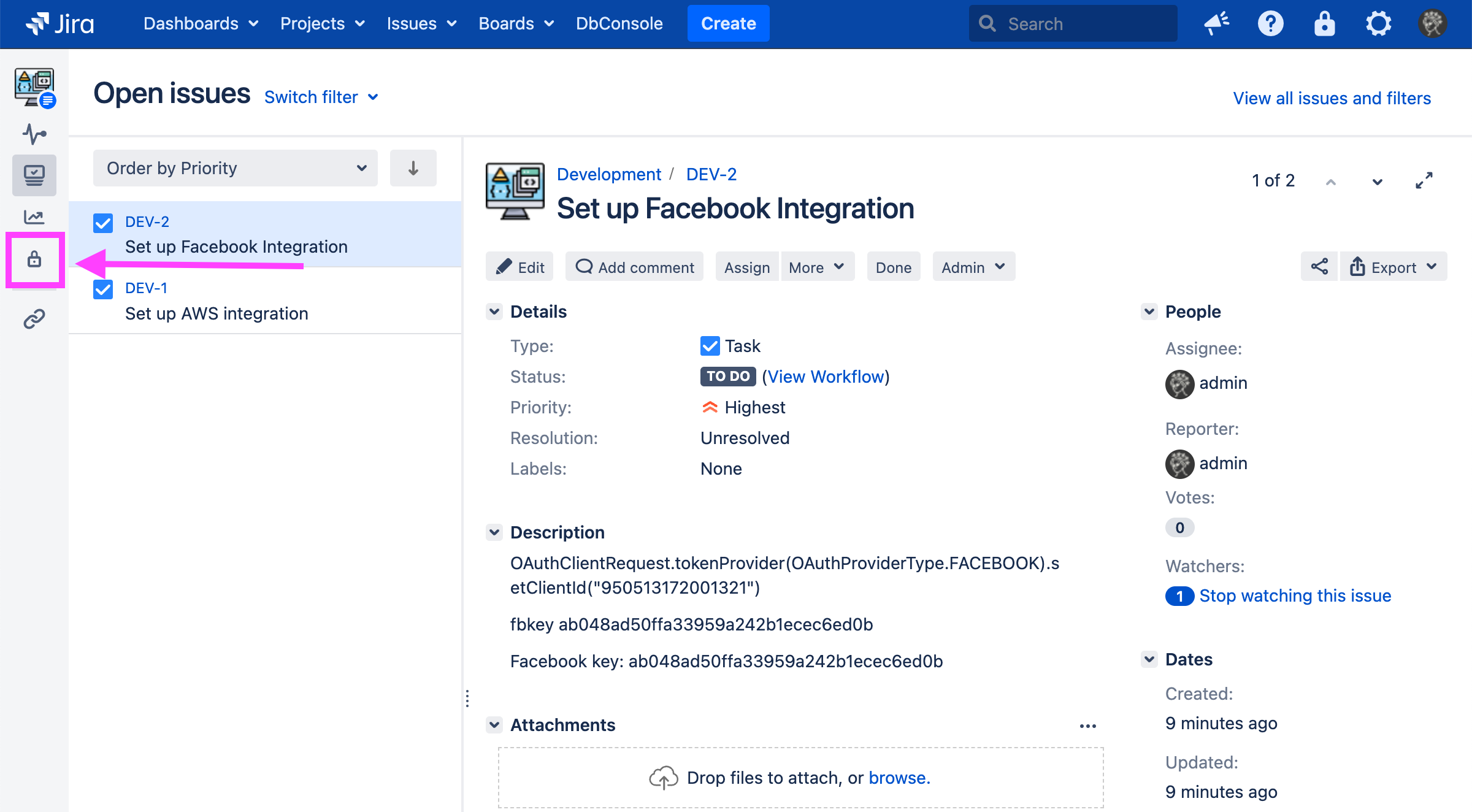
Or, while viewing the project in Jira, you can click on the padlock icon labeled “Security Analysis” in the side panel:
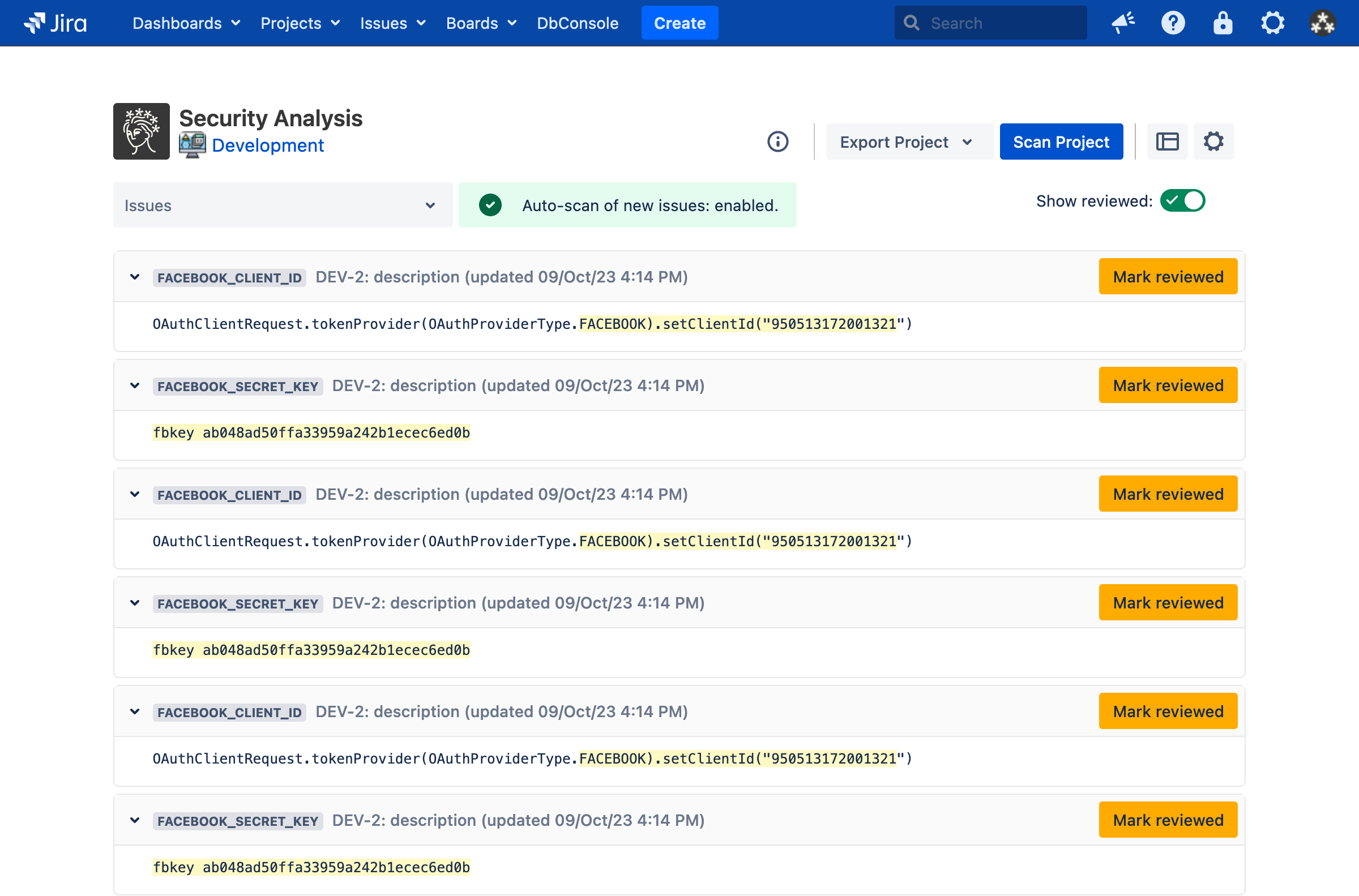
The project’s scan status and all findings in the project will be displayed.
You can select an issue in the dropdown list to get the scan status and findings for that issue.
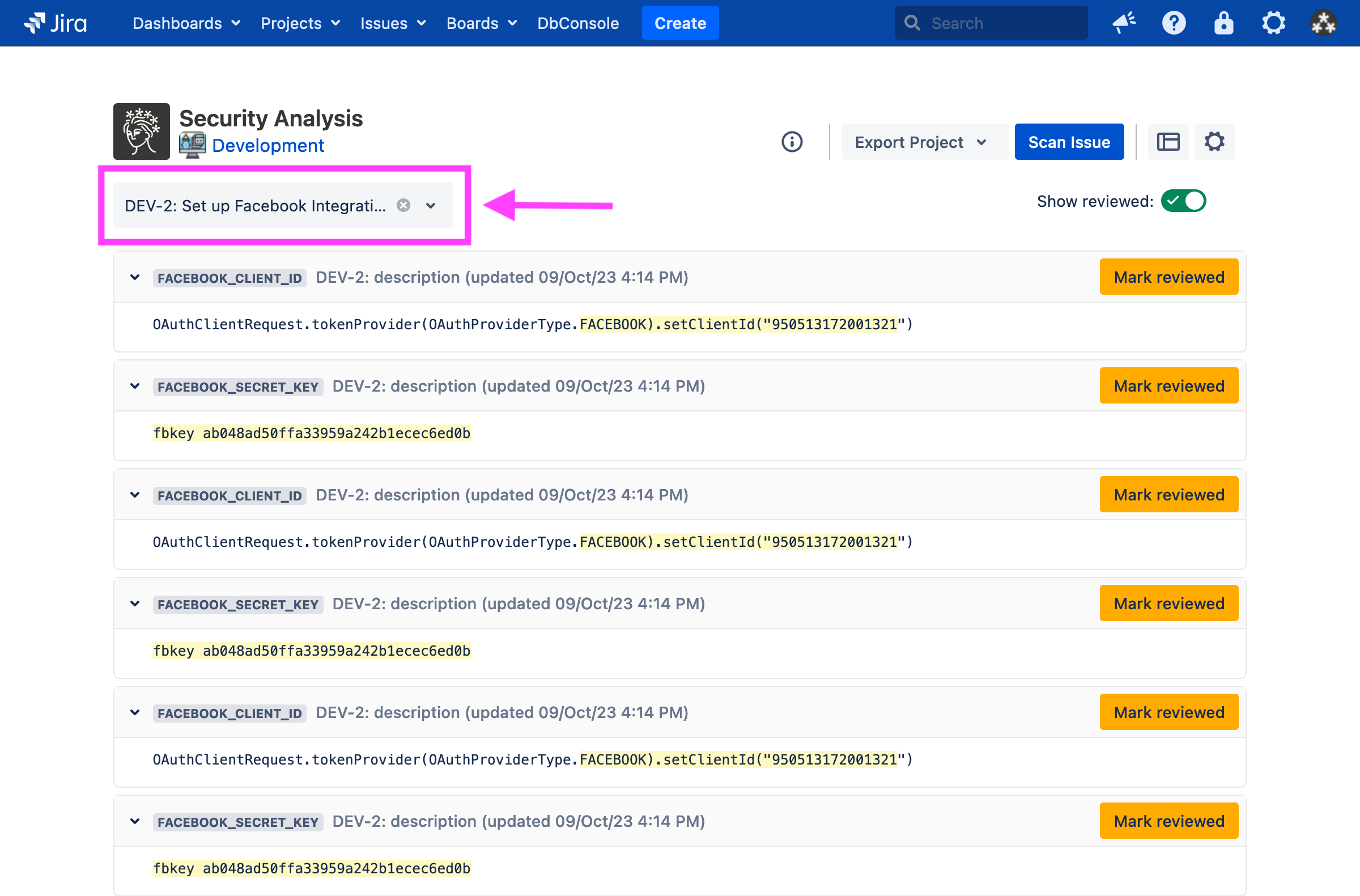
Above, we see a few scan findings for a particular issue. The specific text that matched the listed rule’s regex is highlighted. Specifically, this is the group 0 match: what the entire expression captured. For more information, see the Java 8 Regular Expression documentation.
Scan warnings
The Security Analysis will warn you if a previous scan is stale or outdated.
Stale scan
If an issue in a previously scanned project is added, removed, or updated, and automatic scanning is disabled, then the Security Analysis will indicate that the project’s scan results are stale, and the project should be re-scanned.

Outdated scan
Additionally, if a project is scanned, but a global detection rule is later toggled, then the Security Analysis will indicate that the project scan results are outdated.

This warning also appears for each issue where global rules have changed since its last scan.
