

Attachment scanning is an advanced feature. Contact your administrator about purchasing a license upgrade for Security for Confluence.
Security for Confluence Cloud can scan files attached to pages and blog posts for sensitive data, using the same detection as your page and comment scans: your configured rules, plus AI scanning if you have it enabled.
Attachment scanning is off by default. When it is enabled:
-
Most common document types are supported (see below).
-
Images and image-only ("scanned") PDF pages are read using optical character recognition (OCR). English text is recognized.
-
Files larger than 5 MiB are skipped.
-
Archives (
.zip,.rar,.gz) are not supported yet.
Supported File Types
|
File Type |
File Extensions |
|---|---|
|
PDFs |
|
|
Microsoft Word Documents |
|
|
Microsoft Excel Spreadsheets |
|
|
Microsoft PowerPoint Presentations |
|
|
Microsoft OneNote Pages |
|
|
Email Messages |
|
|
XPS Documents |
|
|
Rich Text Documents |
|
|
Ebooks |
|
|
OpenOffice / LibreOffice Documents |
|
|
OpenOffice / LibreOffice Spreadsheets |
|
|
OpenOffice / LibreOffice Presentations |
|
|
WordPerfect Documents |
|
|
Images (read with OCR) |
|
|
Other text-based files |
Files not listed above, such as |
Office files saved in the ISO "Strict" OOXML format (some .docx, .xlsx, and .pptx files) aren't currently supported. They are skipped and appear as UNSUPPORTED_FORMAT in the coverage export; re-save them in the standard Office format to scan them.
Enabling and Disabling Attachment Scanning
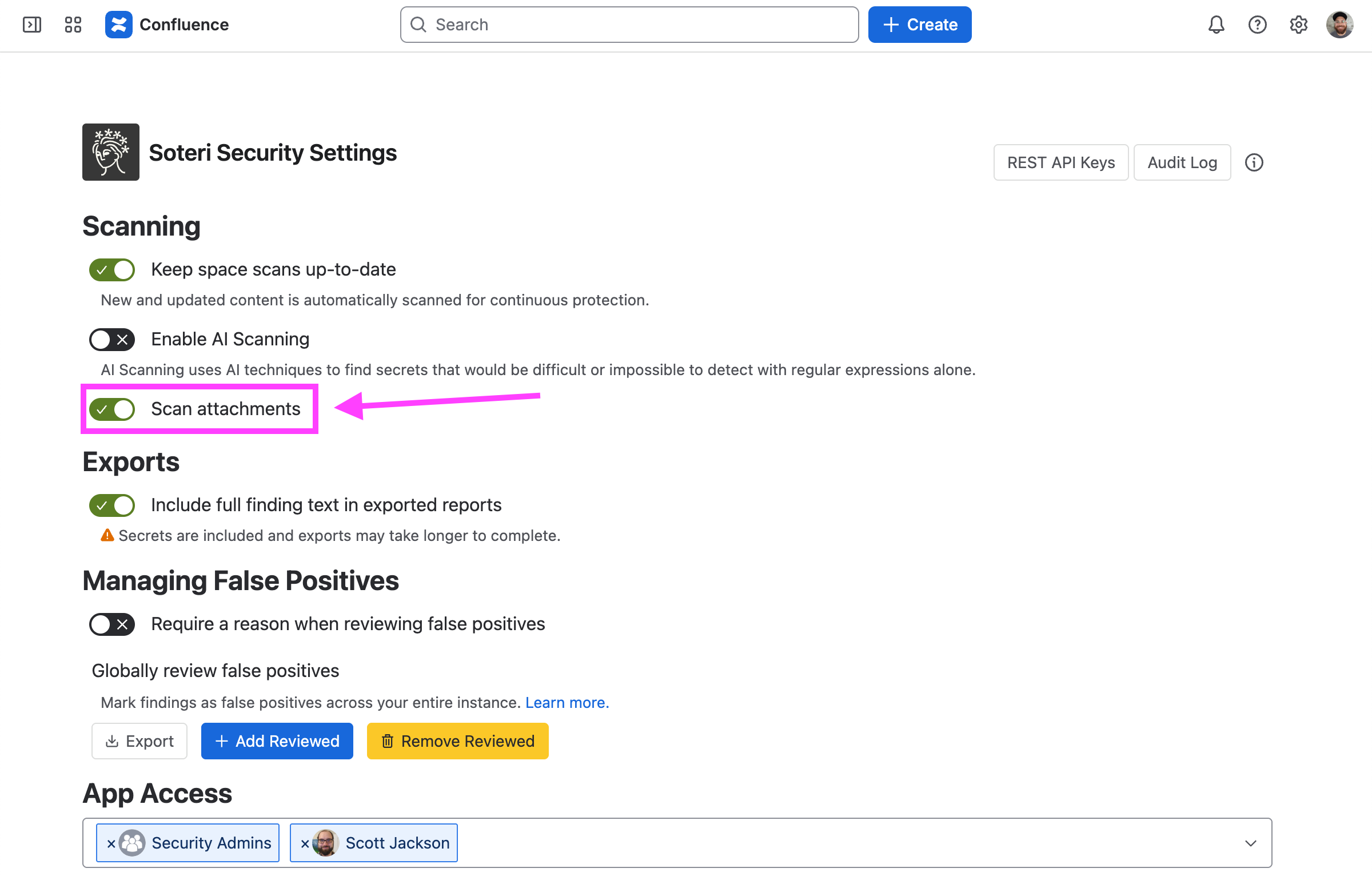
Attachment scanning requires the Advanced edition. To turn it on, open the Security for Confluence settings page and enable the Scan attachments setting (it is off by default).
After turning attachment scanning on, run a rescan to scan attachments on your existing content. Turning it off, or losing Advanced access, marks the affected content out of date; retained attachment findings are removed the next time that content is rescanned.
Exporting Information About Scanned Attachments
To see what happened to each attachment (scanned, skipped, or failed), export the attachment-coverage report. The export is a CSV with these columns:
-
Space key
-
Parent page title
-
Parent page ID
-
File name
-
Attachment ID
-
Version number
-
File size in bytes
-
Scan state —
SCANNED,UNSCANNED, orFAILED(a queued or in-progress attachment showsSCHEDULEDorSCANNING) -
Unscannable reason — if the file was not scanned, a reason code:
-
UNSUPPORTED_FORMAT— the file type can't be scanned (for example an archive, audio or video file, or a vector or design format such as SVG, Visio, or Draw.io — or an Office file saved in the Strict OOXML format). -
ENCRYPTED— the file is password-protected, so it can't be opened for scanning. -
TOO_BIG— the file is larger than the 5 MiB limit (or its extracted text is too large to process). -
PARSE_ERROR— the file couldn't be read because of an unexpected error. -
MALFORMED— the file is corrupt or isn't a valid file of its type. -
EXCEEDED_MEMORY_LIMIT— the file expanded past a safe memory limit while being read (this can happen with highly compressible files). -
EXCEEDED_TIME_LIMIT— reading the file took longer than the time limit.
-
-
Error message — an optional message that may explain why an attachment failed to scan.
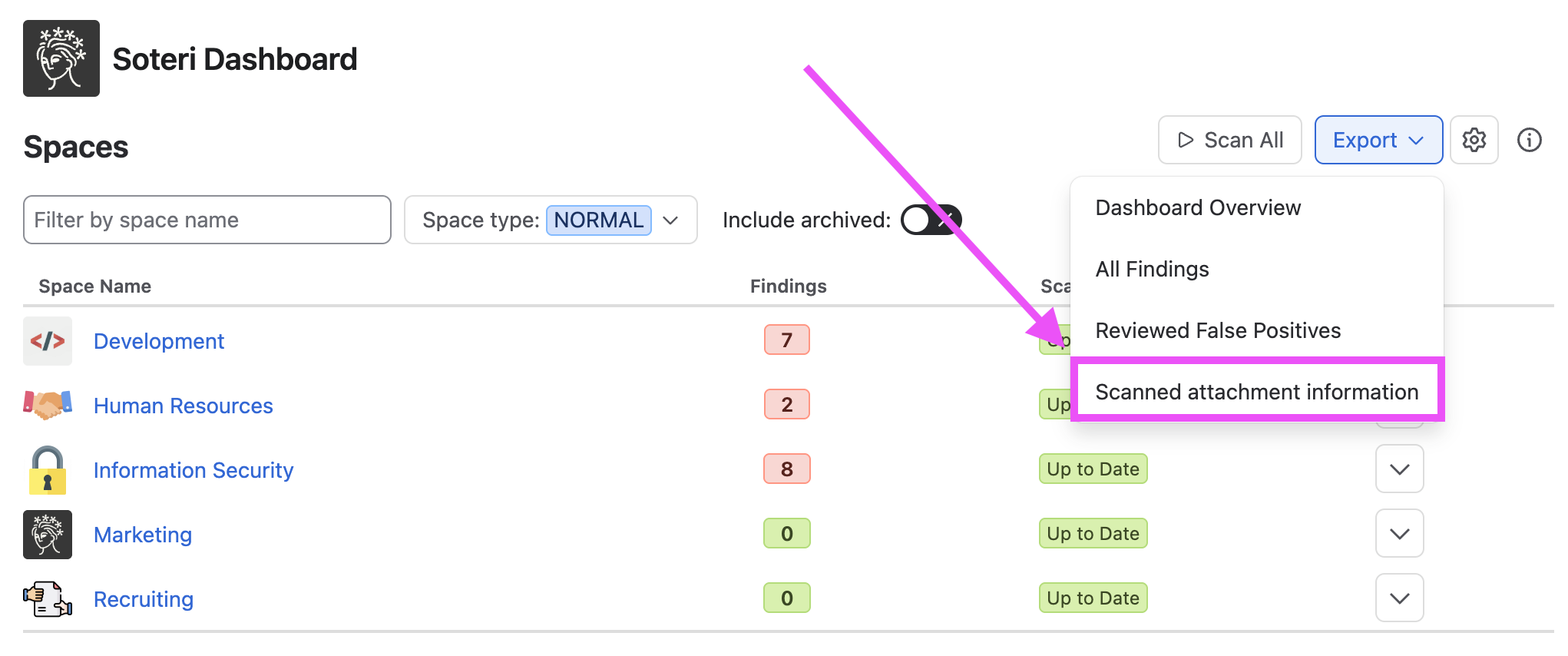
From the Soteri Dashboard, you can export attachment coverage for every space you administer:
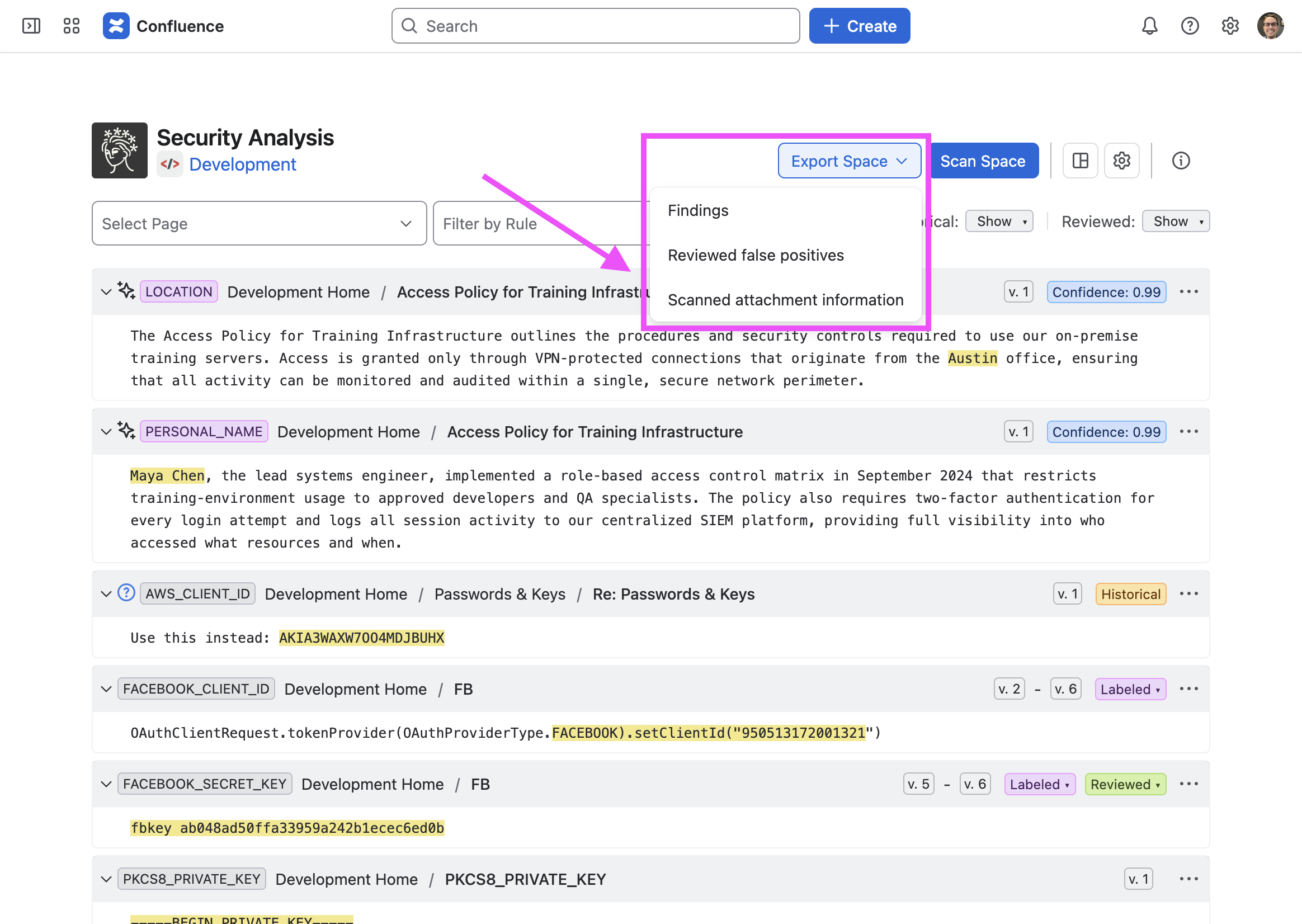
From the Security Analysis page, you can export attachment coverage for a specific space:
Exports run in the background. When the file is ready, the app starts the download automatically.