

AI-based scanning scanning and false positive filtering is an advanced feature. Contact your administrator about purchasing a license upgrade for Security for Jira.
Getting Started with AI Scanning
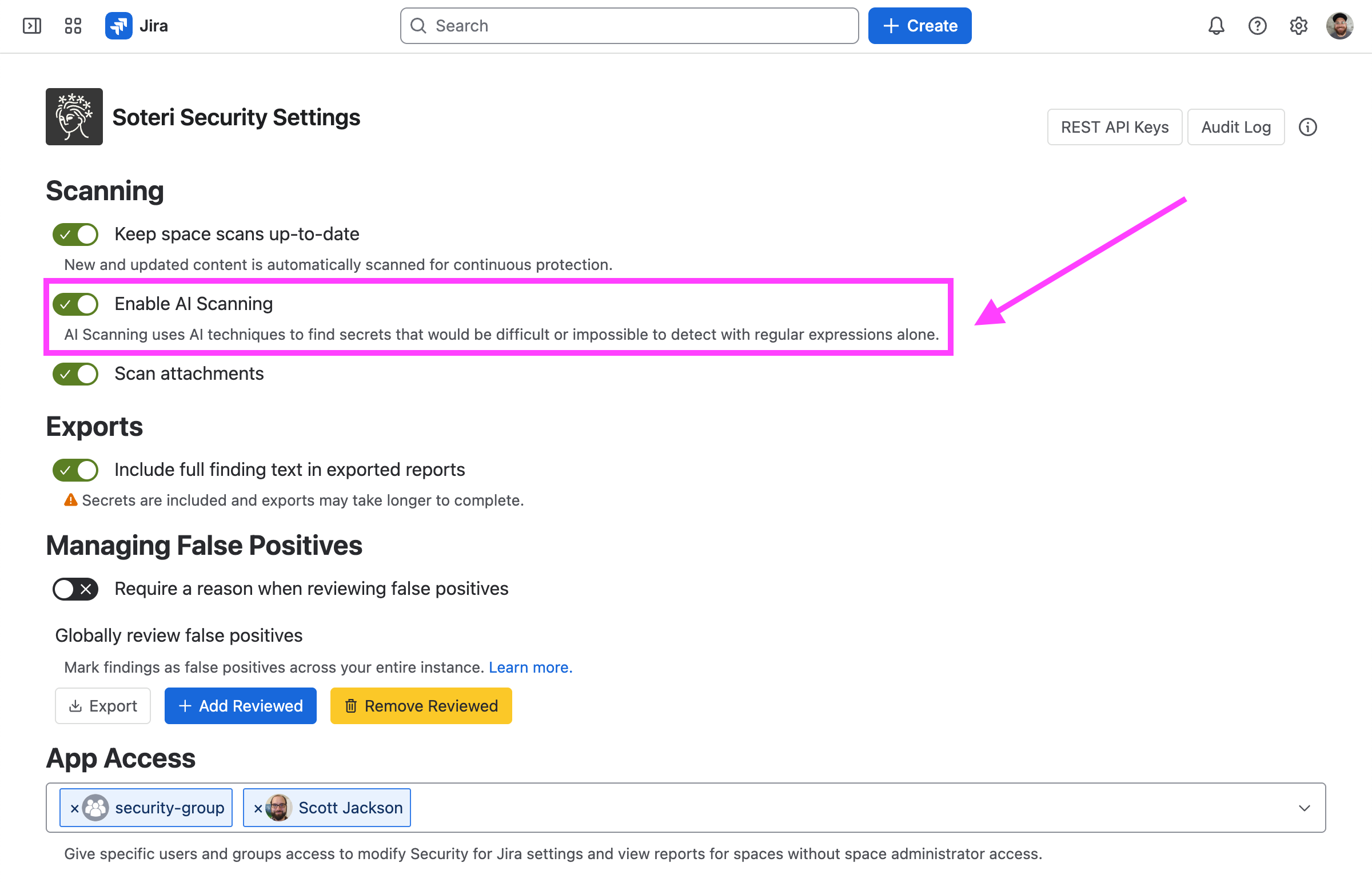
To check whether AI scanning and false positive filtering is enabled on your system, proceed to the Settings Page. If the “Enable AI scanning” setting is disabled, you require an upgraded license to proceed. Contact your administrator about purchasing a license upgrade for Security for Jira.
If you have an upgraded license, the setting should look like this:
Configuring AI Scanning Rules
With AI scanning enabled, you can expand the AI Scanning Rules section:
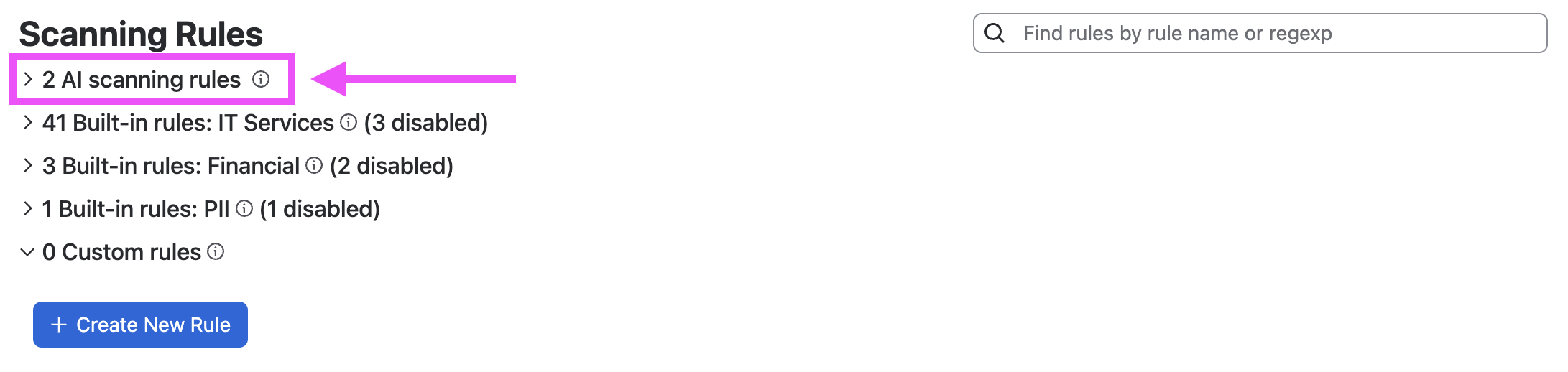
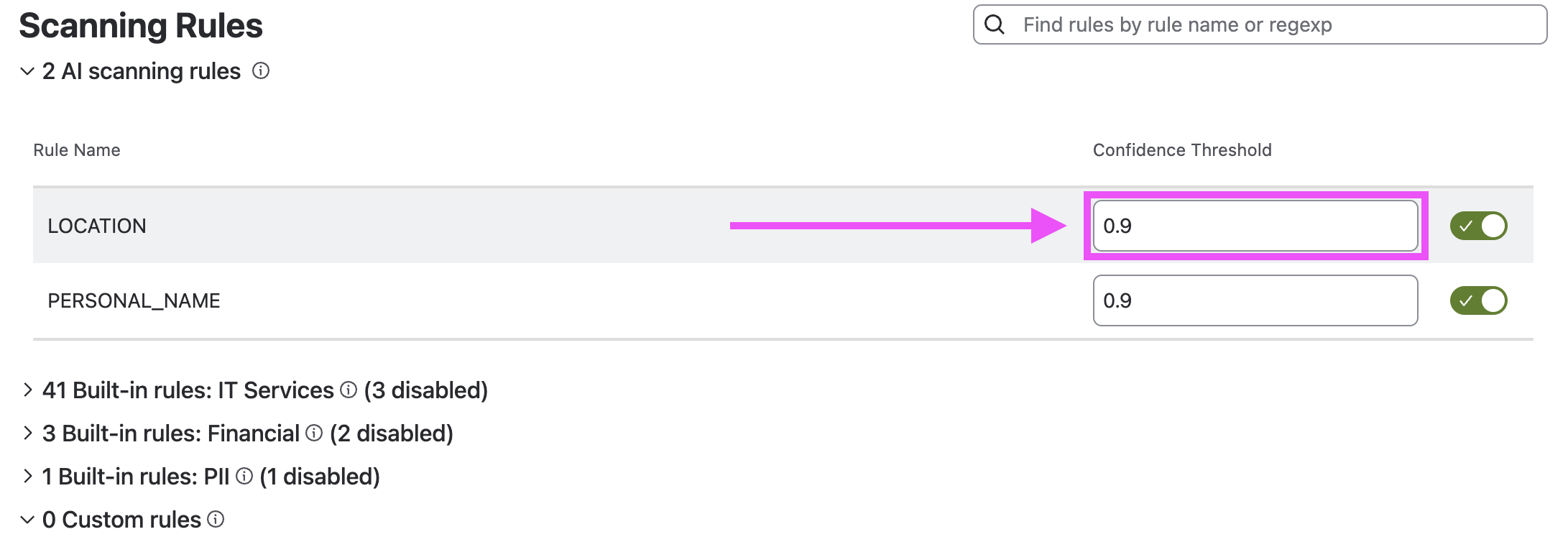
When it opens, you will be presented with a list of available rules, together with a configurable confidence threshold. The confidence threshold is the confidence value above which a finding will be considered positive. To record all findings no matter how low the confidence, set this to 0.0.
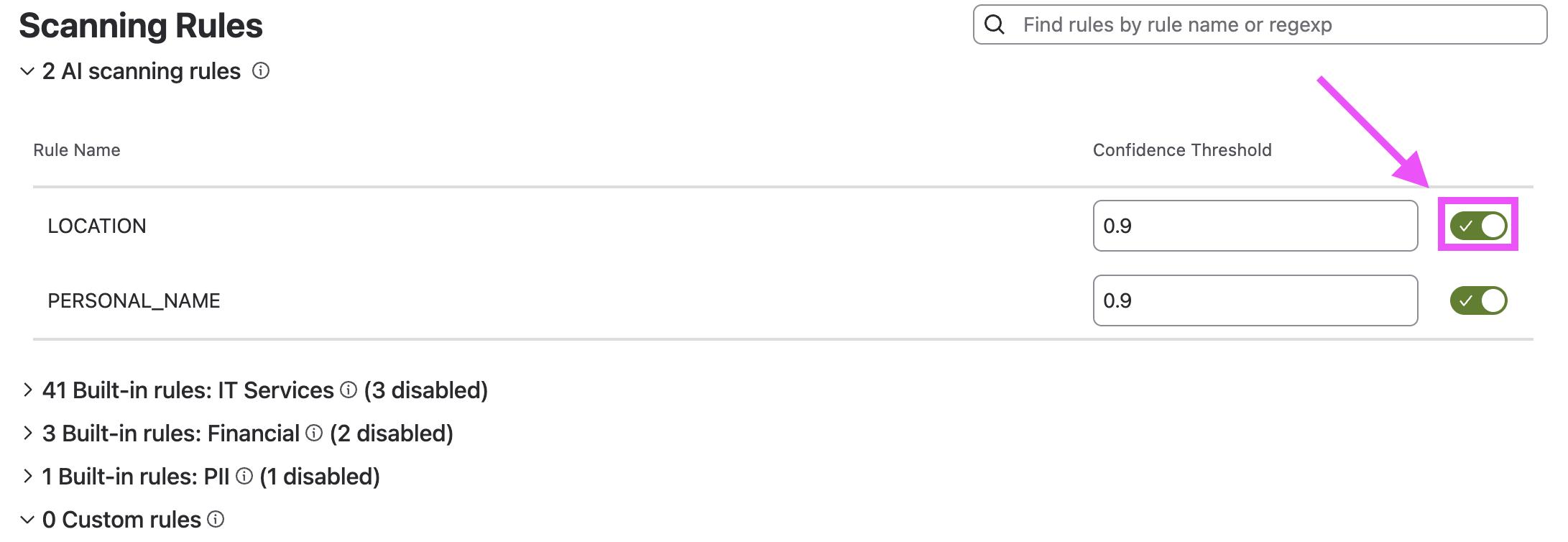
To disable an AI scanning rule completely, toggle the switch on the far right side:
AI False Positive Filtering
Soteri Security for Jira supports advanced AI false positive filtering for the built-in GENERIC_PASSWORD rule when the AI Scanning switch is enabled. For more information, see: Enabling and Disabling Global Detection Rules | Filtering Using AI