

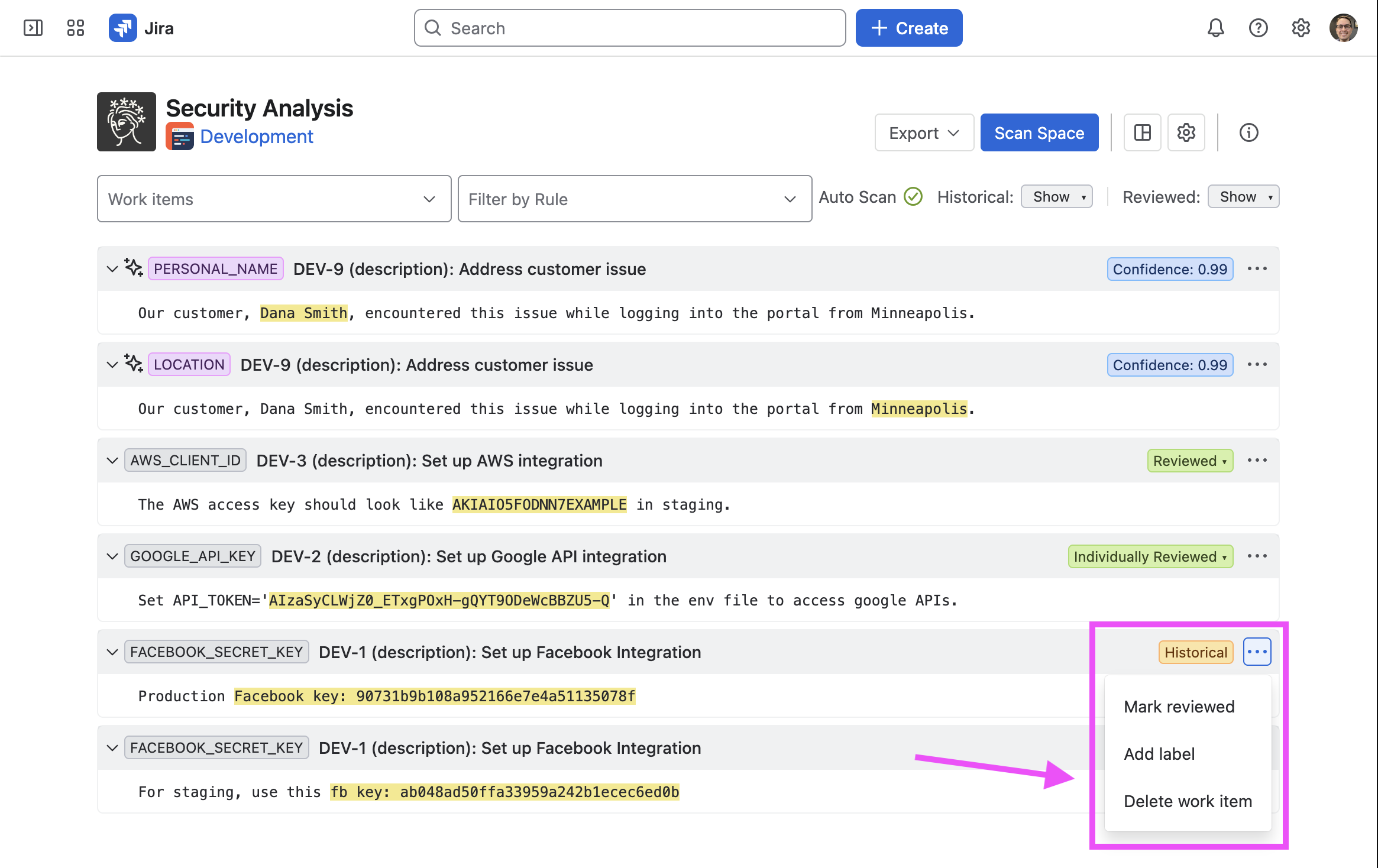
For false positives and true positives whose credentials have already been revoked, marking findings as reviewed tells Security for Jira Cloud the finding is no longer a concern. However, Security for Jira Cloud also provides ways to remediate content with findings from within the app: applying a label to a work item, or deleting the content outright. For either option, click the menu next to any finding in the Security Analysis.
Labeling work items
When a scan finding needs attention from someone else—a space owner who has to remove a secret, or a team that needs to review what was exposed—you can mark the work item it was found in with a label, soteri-finding.
When you select Add label, Security for Jira adds the label soteri-finding to the work item. The finding—as well as any others that pertain to the same work item—then shows a Labeled lozenge.
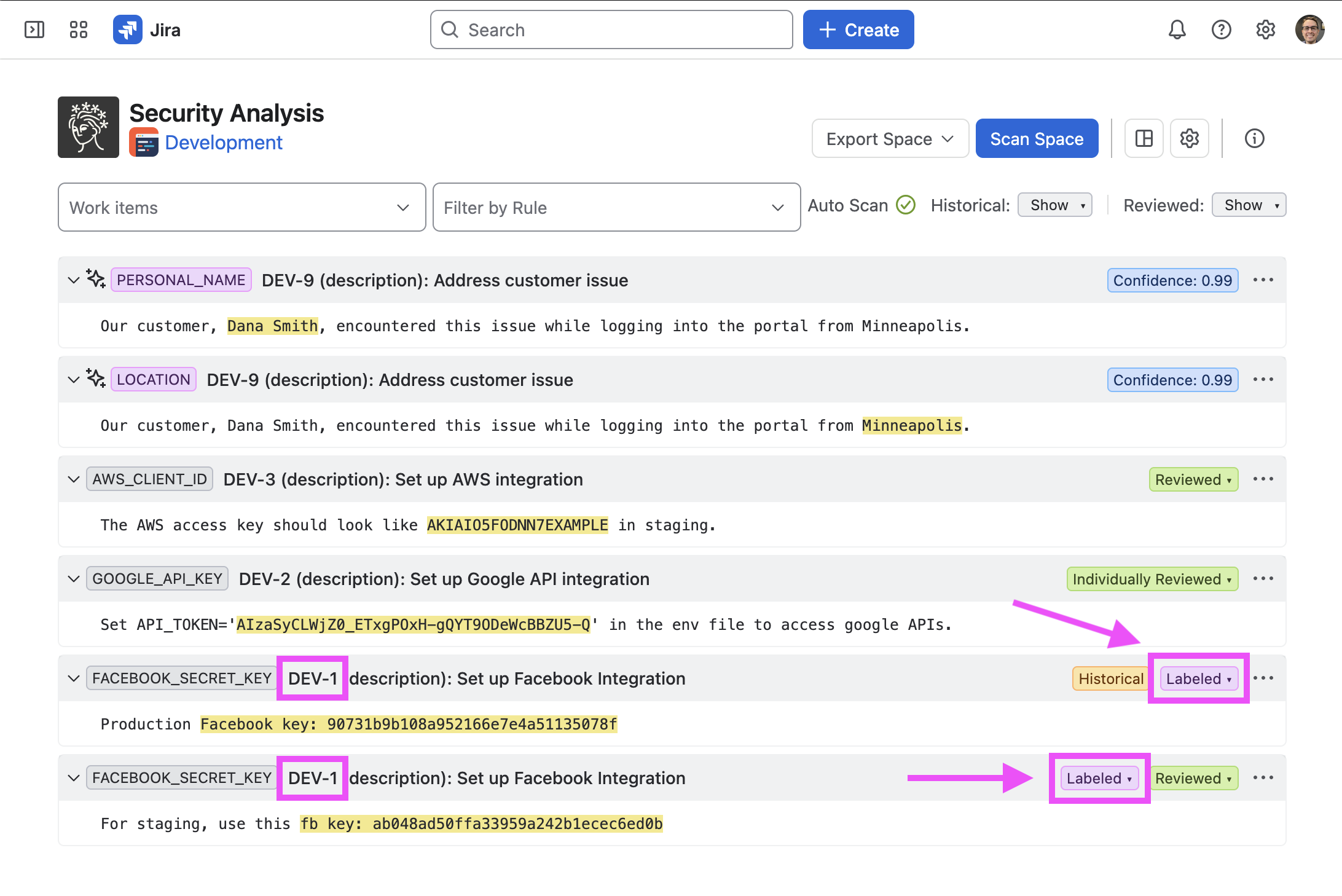
Because this is an ordinary Jira label, labeled work items can be found the way any other labeled work item is: through Jira search, a label view, or a JQL query such as label = "soteri-finding". There are many powerful things you can do with labels in Jira, such as triggering an automation that restricts permissions to a work item when it receives a particular label.
To remove the label via the Security Analysis, either use Remove label in the finding’s menu or click the Labeled lozenge on the finding. You can also remove the label from the work item directly.
The label is always applied to a work item. When the finding is in a field of a work item, that is the work item that gets labeled. When the finding is in a comment or an attachment, the label goes to the work item the comment or attachment belongs to.
Labeling work items via Security for Jira Cloud is available to space administrators and to administrators of the app. The label is added and removed as you, the user, using your own Jira permissions, so you also need permission to edit the work item being labeled.
Deleting work items, comments, and attachments
There is also the option to delete the work item, comment, or attachment directly, which additionally removes the scan finding and any other scan findings pertaining to the same content. Note that Jira has no trash for work items, comments, or attachments, so the operation is permanent and cannot be undone.